
Dezgo is an online AI image generator that lets you describe an image and generate a visual from that description. For bloggers, the useful starting point is a clear purpose: an illustration that introduces a topic, explains an idea, or supports a social post.
Official tool: Visit Dezgo.
This guide explains how to choose an image-generation mode, write practical prompts, refine your results, and prepare images for your website. Results vary by model, settings, and prompt.
Research checked: October 4, 2026. This is a documentation-based guide, not a hands-on review. The editorial illustrations were created with ChatGPT and are not Dezgo outputs.
What Is Dezgo?
Dezgo provides several AI image-generation and editing tools through a browser. Its current menu includes text-to-image generation, image-to-image tools, background removal, upscaling, and inpainting from text. Video-generation tools are also available, but this guide focuses on blog illustrations. See the official tool directory for current availability.
The difference between the main image functions is their starting point:
- Text-to-image: start with a written description.
- Image-to-image: start with an existing image and describe the intended result.
- Inpainting: change a selected part of an image.
Dezgo's official editing documentation explains image-to-image and masked inpainting, including how the amount of change depends on the controls used.
For a new blog illustration, begin with text-to-image. If you already have an image that needs modification, explore the editing tools instead.
Is Dezgo Free?
Dezgo offers a free version without registration. Its official FAQ identifies rate limits, restricted resolution, and capped sampling steps. Some compute-intensive features are unavailable for free. There is no single numeric free allowance confirmed here for every tool.
The current directory marks Flux 1, SD1, XL, and XL Lightning text-to-image tools as free. That does not mean every model or optional feature is free.
The optional paid upgrade, Power Mode, uses prepaid, pay-as-you-go billing. The FAQ lists a $10 minimum deposit, verified on October 4, 2026.
For paid requests, check the displayed price before submitting. Dezgo's terms explain that charges cover computing resources, including when the result does not meet your expectations. A quoted cost for one model should not be treated as the price of every image.
How to Create Blog Images With Dezgo
The workflow below uses the documented Text-to-image SD1 page as its reference. Other modes expose different controls, so follow the fields available on your selected page.
1. Choose a generation mode and model
Open Dezgo's directory and select a text-to-image tool.
The SD1 page includes a Model field. Choose a model appropriate to your intended visual rather than assuming a realistic model will suit every illustration. The page retrieved during research displayed AbsoluteReality 1.8.1, labeled realistic.
For your first attempt, keep the task simple: one main subject, a clear setting, and one visual style.
2. Describe the image's job
Before entering a prompt, answer four questions:
- What should readers notice first?
- What visual style fits the article?
- How should the objects be arranged?
- Where will the image appear?
“AI blogging image” leaves most decisions unspecified. A more useful brief might describe an editorial illustration of a notebook beside three image cards, with a restrained blue palette and uncluttered background.
Use BlogAILab's guide to writing better AI prompts for a broader approach to giving clear instructions.
3. Choose the shape before generating
The SD1 interface shows Portrait, Square, and Landscape resolution choices, plus width and height fields. Some controls are marked for Power Mode.
Choose the orientation that matches your publishing space:
- Landscape for a wide featured image.
- Landscape or square for an illustration inside the article.
- Portrait for a vertical social graphic.
Do not rely on writing “16:9” in the prompt to set the actual file dimensions. Use the available resolution controls, then check the downloaded image's dimensions.
4. Review the available options
On SD1, More options includes controls such as negative prompt, guidance, sampler, and seed. The page also displays PNG in its Format field.
Begin with the available defaults. Change a setting only when you have a specific problem to solve.
Controls differ across tools. For example, the Qwen Image 3 page lists resolution, aspect ratio, negative prompt, prompt expansion, and seed. Its prompt-expansion option rewrites the prompt before generation.
5. Generate and inspect
Dezgo's FAQ instructs users to select Run to generate.
Inspect the result against your brief:
- Is the main subject recognizable?
- Does the composition support the article?
- Are objects complete and sensibly arranged?
- Is there unwanted text or a misleading interface?
- Will the image remain understandable at a smaller size?
A decorative image can be attractive while contributing little to the page. Keep the reader's needs central.
6. Refine and download
Identify the largest mismatch and revise that part of the prompt first. For example, replace “many tools on a desk” with “one notebook and three separate illustration cards.”
Once you have an acceptable result, save it locally using the result's download control. Keep the original file and record the prompt, model, and settings used. This makes later revisions easier.
Three Dezgo Prompt Examples for Blog Images
These are example prompts to try, not verified Dezgo outputs. Their results will depend on the selected model and settings. Set orientation through the interface where supported.
1. Landscape featured illustration
Use case: introduce an article about creating useful blog imagery.
Landscape editorial illustration of a small creator's workspace, viewed at a gentle overhead angle. One open notebook sits beside three separate illustrated cards showing a landscape scene, a simple explanatory concept, and a vertical promotional composition. Arrange the objects with clear spacing and one strong focal point. Use an off-white background, deep navy details, electric-blue accents, and subtle paper textures. Keep the composition polished and uncluttered, with generous breathing room around the edges. The image should communicate planning visual content for a blog. No readable text, logos, brand symbols, watermarks, or simulated software interface.
2. In-article concept illustration
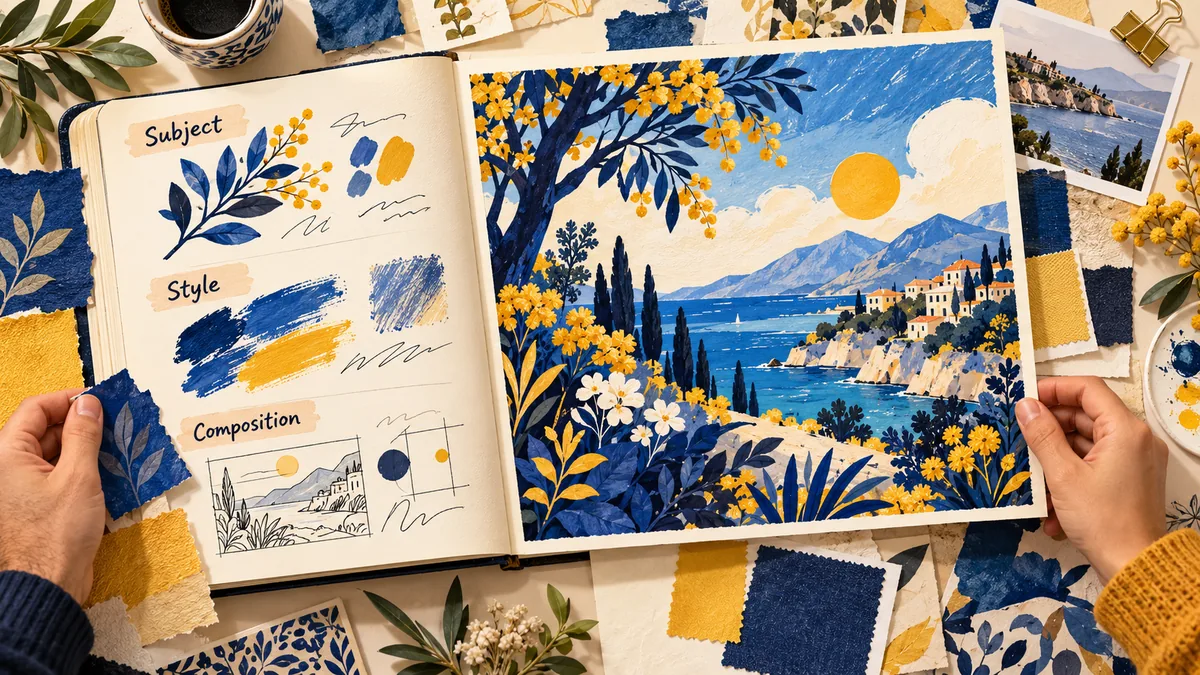
Use case: explain how subject, style, and composition contribute to an image brief.
Landscape educational illustration presenting the same small potted plant in three clearly separated panels. In the first panel, show a simple plant as the main subject. In the second, show that plant with delicate ink outlines and soft watercolor shading. In the third, place the same plant on the right side of a wider scene with open space on the left, demonstrating composition. Use consistent plant shape and colors across the panels, a cream background, restrained blue accents, and large recognizable forms. Avoid decorative clutter. No text, letters, numbers, arrows, logos, or watermark.
Explain the three panels in the surrounding article text. Do not make readers infer the lesson from the picture alone.
Use case: create a background for promoting the tutorial on Pinterest or another visual platform.
Vertical editorial illustration for a blog tutorial promotion. In the lower two-thirds, arrange an open notebook, a pencil, and three overlapping illustration cards in a balanced composition. Each card contains a distinct simple scene, with no writing or interface elements. Leave the upper third as clean off-white space for a headline to be added later in a design editor. Use deep navy, electric blue, and restrained cyan accents, subtle paper texture, strong silhouettes, and clear separation between objects. Keep important elements away from the edges. No generated text, logos, copyrighted characters, or watermark.
Add the headline in a design editor so you can control its spelling, typography, and mobile readability.
How to Improve Dezgo Images That Miss Your Prompt
Treat refinement as a specific correction, not a request for “better quality.”
For a crowded scene, reduce the object count. Replace a long list of desk accessories with two or three essential objects.
To fix an inconsistent style, simplify the style description. Choose one direction, such as editorial illustration with watercolor shading, rather than combining photorealism, flat vector art, and 3D rendering.
When the subject is cropped, describe its placement. Ask for the complete object to remain visible with space around it, then inspect the result again.
For unwanted elements, use supported negative prompts. SD1 and XL document a negative-prompt field. A short list such as “text, logos, watermark, duplicate objects” can express exclusions, although it cannot guarantee their removal.
For more examples of describing the subject, lighting, and composition, see our ChatGPT photo prompt guide. Adapt the image brief to your selected Dezgo model; the tools’ controls and results can differ.
Avoid maximizing every setting. The SD1 interface warns that extreme guidance values may create artifacts. Change one variable at a time so you can judge whether it helped.
For an otherwise useful image with one problematic area, consider an appropriate editing tool instead of regenerating everything.
Preparing Images for Your Blog
Match the website layout
Check your theme's featured-image shape and article width before exporting. A wide header and a narrow content column may need different crops.
Keep important objects away from crop boundaries. Preview the image in the actual post layout.
Compress a publishing copy
Preserve the original, then resize and compress a separate web version. Try WebP, AVIF, or JPEG where your publishing setup supports them; retain PNG when transparency or other requirements justify it.
Compare the compressed image with the original at its displayed size. Look for damaged edges, blotchy gradients, and unreadable small details.
Write descriptive filenames and alt text
Use a filename that identifies the image, such as blog-image-prompt-planning.webp.
Alt text should describe the image's relevant content in context. For example:
Three panels show how subject, visual style, and composition change a plant illustration.
Google's image SEO guidance recommends descriptive filenames and useful alt text, while warning against keyword stuffing. These practices support understanding and accessibility; they do not independently guarantee better rankings.
Keep essential information in the page text
If an illustration explains a process, write that explanation in the article too. Readers should not need to see the image to understand the instructions.
Finally, check the mobile version. Confirm that the image scales correctly, the crop remains useful, and any added headline is readable.
This preparation step fits into BlogAILab's AI blog writing workflow.
Can You Use Dezgo Images Commercially?
Dezgo's FAQ permits commercial use of outputs, provided you comply with the applicable AI license. It states that this applies to free and paid use.
However, licenses differ by model. Dezgo's license page links to Apache 2.0, CreativeML Open RAIL-M, and Gemini API terms. The Flux 1 page identifies Apache 2.0, while SD1 identifies CreativeML Open RAIL-M. Do not apply either label to every model.
The CreativeML Open RAIL-M license includes use restrictions. Check the terms associated with your selected model and any extensions before publishing commercially.
Commercial permission also differs from copyright protection or exclusivity. For example, the U.S. Copyright Office's AI guidance distinguishes human-authored contributions from purely AI-generated material. Copyright treatment depends on jurisdiction and circumstances.
Avoid blanket “copyright-free” claims. Review outputs for recognizable protected material, and use only reference images you have permission to upload.
When Dezgo May—and May Not—Suit Your Workflow
Based on its documented functions, Dezgo is an option to explore when you want browser-based image generation, a free starting point, or editing tools alongside generation.
Its documented constraints include free-version limits, model-specific controls, and paid charges that do not depend on whether you like the result.
As an editorial judgment, it may fit less comfortably when you need an exact product depiction, a factual screenshot, precise data visualization, or strict character consistency. Those tasks require close verification or more controllable production methods.
This assessment does not establish generation speed, visual quality, or reliability. For factual illustrations, apply the verification habits in BlogAILab's AI content fact-checking guide.
Dezgo Frequently Asked Questions
Can I build Dezgo into an automated workflow?
Yes. Dezgo provides a developer API. Its getting-started documentation explains account setup, API keys, prepaid funding, and requests. Ordinary browser use does not require API setup.
Can I recover an image I forgot to download?
The FAQ says Power Mode's History feature stores recent requests for up to 30 days. Save your own copies rather than relying on it as permanent storage.
Does Dezgo have an upscaling tool?
Yes. Its Upscale page documents 2× enlargement using Real-ESRGAN and shows a maximum input size of 768 × 768 pixels, with automatic resizing. Check those limits before uploading.
Can it generate transparent backgrounds?
Some modes expose a transparent-background option, including Flux 1 and XL. Check availability and any charge in your chosen mode rather than assuming universal support.
Start with one illustration for one article. Define its purpose, try a focused prompt, inspect the result, and prepare a web-friendly version before expanding the workflow.
This workflow follows the documented controls. Successful image generation and download have not been independently tested for this guide; interface details, prices and available models may change.