
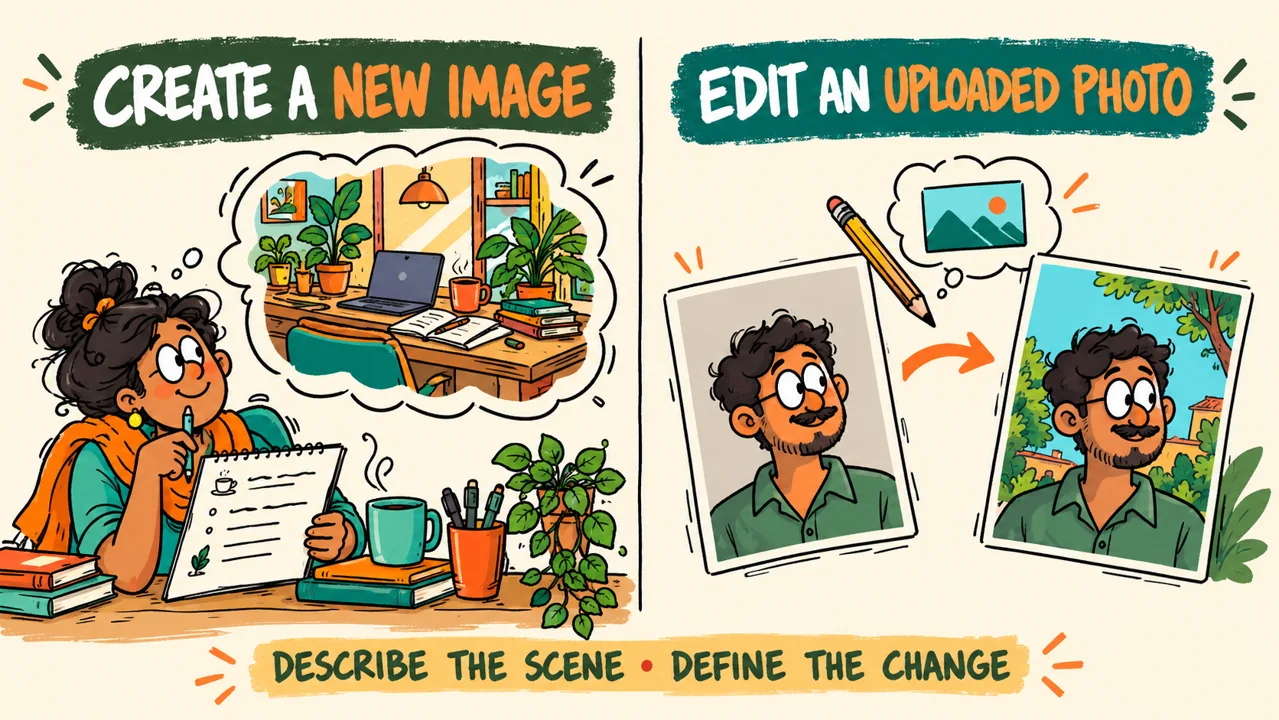
A useful ChatGPT photo prompt tells the tool what image you need, how it should look, and which details matter most. Start with one decision: are you creating a new scene or editing a photo you already have? That choice changes your instructions. For a new image, describe the subject and composition. For an edit, explain what to change and what to preserve. This guide gives you a reusable formula, 15 copy-ready examples, and a publishing checklist. You will learn how to request portraits, product scenes, and blog visuals while checking for identity changes, misleading details, and unwanted alterations.
What Is a ChatGPT Photo Prompt?
A ChatGPT photo prompt is a written instruction for creating or editing an image with a photographic appearance.
New-image generation: Describe a scene without supplying a source photo. The resulting people, objects, and surroundings are AI-created illustrations, even when they look realistic.
Uploaded-photo editing: Attach an existing photo and explain the changes you want. For example, replace a busy background while asking to preserve the person and clothing.
OpenAI’s ChatGPT image-generation guidance describes both creating images and using attachments for editing or visual reference. Availability and usage limits depend on your plan and workspace settings.
An edited result can contain newly generated details. Neither workflow provides evidence that a person visited a location, used a product, or achieved a particular result.
How to Write a ChatGPT Photo Prompt
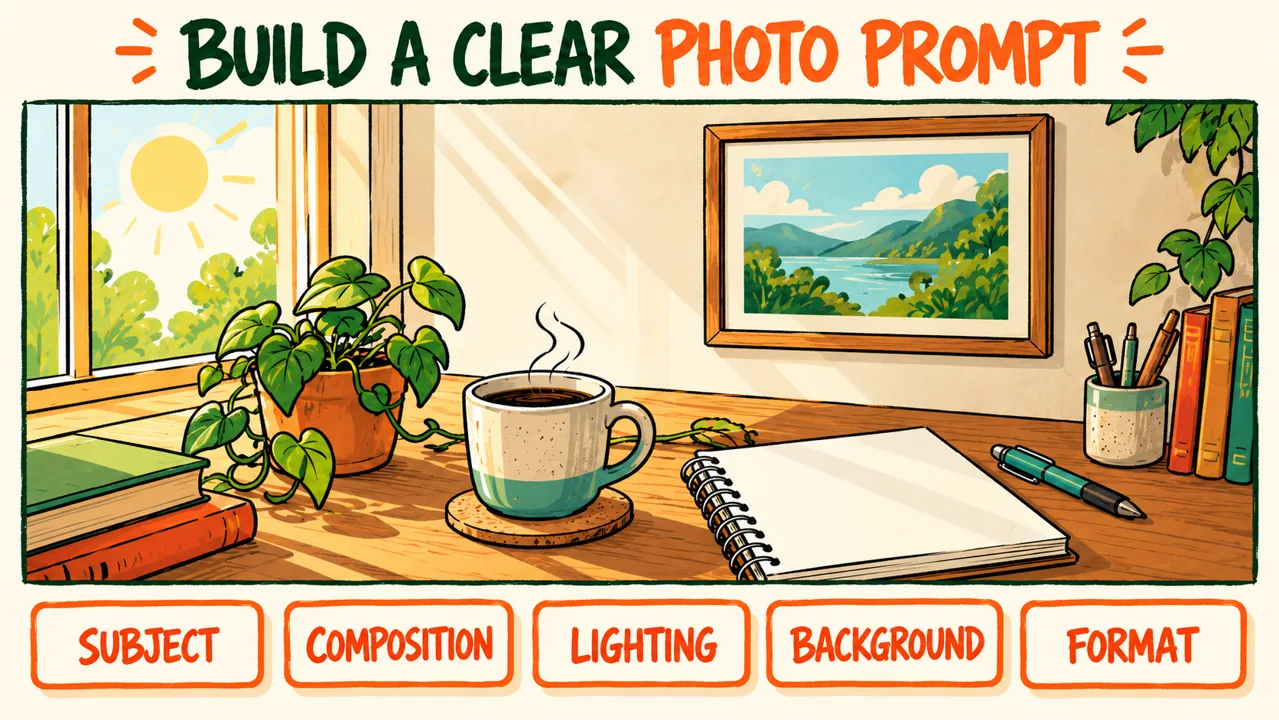
Build your prompt around this reusable formula:
Create or edit [subject] for [intended use]. Show [action or pose] in [setting and background]. Use [composition and framing], [lighting], and [visual style and colors]. Use [aspect ratio]. Preserve [important details]. Avoid [unwanted changes or elements].
Each part answers a practical question:
- Subject and use: What belongs in the image, and where will you publish it?
- Action or pose: Is the person sitting, looking forward, or working?
- Setting: What should surround the subject?
- Composition: Specify overhead, eye-level, close-up, or waist-up framing.
- Lighting: Name a source, such as soft daylight from the left.
- Style and colors: Describe realistic texture and a restrained palette.
- Aspect ratio: Request square, landscape 16:9, or portrait 2:3 as appropriate.
- Preserve and avoid: Identify essential features and unwanted additions.
Photographic terms communicate appearance. “85mm portrait look” suggests a particular perspective and background softness; it does not prove that a camera or lens captured the image.
For edits, begin with “Edit the uploaded photo” and prioritize the smallest necessary change. OpenAI’s image-prompting documentation likewise recommends defining what should change and what should remain.
For broader briefing techniques, see how to write better AI prompts.
15 ChatGPT Photo Prompt Examples for Creators
These examples are illustrative prompts, not tested results. The accompanying artwork explains the concepts; it is not evidence of a photo-editing test. Replace bracketed details before copying. Upload only images you have permission to use.
Portrait-preservation instructions express a goal; they cannot guarantee an identical face. Compare every portrait edit with its source.
1. ChatGPT Photo Prompt for a Professional Headshot
Best use: Freelance profiles and author bios. Upload: Required—your portrait.
Edit the uploaded portrait into a professional creator headshot. Preserve my recognizable identity, existing facial features, hairstyle, skin texture, and natural body proportions. Keep my expression and clothing. Use eye-level, chest-up framing with space above the hair, soft frontal daylight, and a muted blue-gray background. Square 1:1 crop. Avoid facial reshaping, beauty filters, added accessories, and text.
Customize: Background color, crop, and lighting direction.
Check: Compare eyes, jawline, and hairline with the original before using it as your profile photo.
2. Natural Window-Light Portrait
Best use: Personal websites and creator introductions. Upload: Required—your portrait.
Edit the uploaded portrait to suggest soft daylight from a window on the left. Preserve recognizable identity, existing features, hairstyle, skin texture, clothing, and natural body proportions. Keep the original pose. Use an eye-level, shoulders-up 4:5 composition with a softly blurred cream interior and gentle shadows on the right. Retain realistic skin tones. Avoid exaggerated eye highlights, skin smoothing, and added objects.
Customize: Window side, background tone, and shadow softness.
Check: Both eyes and the neck should receive believable light without mismatched skin colors.
3. Clean Profile Photo Background
Best use: A consistent avatar across platforms. Upload: Required—your portrait.
Edit only the background of the uploaded portrait, replacing it with a plain warm-gray backdrop. Preserve recognizable identity, existing facial features, natural body proportions, skin texture, hair, clothing, pose, and original lighting. Keep the original framing, then provide a square crop with comfortable headroom. Match background brightness to the subject. Avoid halos, cutout edges, facial retouching, or new accessories.
Customize: Background hue and crop padding.
Check: Inspect hair, ears, and shoulders for edge artifacts; even a background edit can alter the subject.
4. Editorial Portrait for an About Page
Best use: An About-page banner. Upload: Required—your portrait, preferably waist-up.
Edit the uploaded portrait for an About-page editorial image. Preserve recognizable identity, existing features, skin texture, clothing, pose, and natural body proportions. Place me in the right third against a simple neutral studio background, leaving the left third uncluttered for website copy. Use soft side lighting and warm, restrained colors. Landscape 16:9, waist-up framing. Avoid invented awards, office branding, facial reshaping, and text.
Customize: Subject placement, backdrop, and color warmth.
Check: Wider framing may invent areas missing from the upload; inspect shoulders, torso, and clothing.
5. ChatGPT Photo Prompt for a Studio Product Photo
Best use: Catalog-style visuals. Upload: Required—a clear product photo.
Edit the uploaded product photo onto a seamless off-white studio background. Preserve the actual product’s shape, proportions, color, material, label, logo, and packaging details. Keep its original viewing angle, center it with generous margins, and show the entire product. Use soft upper-left lighting and a subtle contact shadow. Square 1:1 composition. Avoid redesigned packaging, added claims, extra accessories, and glossy plastic-looking surfaces.
Customize: Background color, margins, and shadow softness.
Check: Compare the output against the original, especially small lettering, logo geometry, and package edges.
ChatGPT Photo Prompt Examples for Products and Blog Visuals
6. Product Lifestyle Photo
Best use: A styled small-business promotional visual. Upload: Required—your product photo.
Edit the uploaded product into a lifestyle scene on a pale wooden table beside a folded linen cloth. Preserve its actual shape, color, label, logo, proportions, and material. Retain the source viewing angle; position the product in the right third with empty space on the left. Use soft morning window light and warm neutral colors. Landscape 4:3. Avoid people, endorsements, invented ingredients, extra packaging, and text overlays.
Customize: Surface, supporting prop, and palette.
Check: Compare labels and scale with the source; the invented setting should not imply unsupported product benefits.
7. Overhead Workspace Photo
Best use: Productivity and blogging articles. Upload: Not required—new image.
Create a photo-style editorial illustration of a tidy creator workspace viewed directly overhead. Show a closed unbranded laptop, blank notebook, pen, and ceramic coffee cup on a light oak desk. Arrange objects around an open central area. Use diffuse daylight from the upper left, gentle shadows, and cream, charcoal, and muted teal colors. Landscape 16:9. Keep every object fully visible. No hands, readable text, logos, or duplicate objects.
Customize: Desk material, accent color, and objects.
Check: Inspect cup handles, laptop edges, and object intersections for implausible geometry.
8. ChatGPT Photo Prompt for a Blog Featured Image
Best use: Article headers with manually added titles. Upload: Not required—new image.
Create a realistic photo-style illustration for a beginner blogging article. Show a notebook, unbranded camera, and closed laptop grouped in the lower-right half of a matte cream desk. Leave the upper-left half clear for a headline added later. Use an angled overhead view, soft daylight, electric-blue accents, and natural material textures. Landscape 16:9. Avoid embedded text, logos, crowded props, and objects touching the frame.
Customize: Topic-related props, headline position, and accent color.
Check: Preview at thumbnail size; the empty area must remain usable after your website’s crop.
9. Vertical Pinterest Photo
Best use: A portrait-format visual for a tutorial pin. Upload: Not required—new image.
Create a vertical photo-style illustration about planning creative work. Show a blank open notebook, three plain color swatches, a pencil, and a small plant arranged on a warm off-white tabletop. Use a fixed overhead composition, with objects in the lower two-thirds and clear space at the top. Soft left-side daylight, cyan and coral accents, realistic shadows. Portrait 2:3. No generated lettering, logos, hands, or excessive decoration.
Customize: Palette, props, and empty-space size.
Check: Add titles manually and confirm the top area provides enough contrast for readable text.
10. Creator Working in a Home Studio
Best use: Illustrating a creator-workflow article. Upload: Not required—new image.
Create a photo-style editorial illustration of a fictional adult creator seated at a compact home-studio desk, reviewing a notebook beside an unbranded laptop. Use an eye-level three-quarter view, waist-up framing, relaxed posture, and natural body proportions. Show a simple shelf and one plant in the background. Soft window light, warm wood, muted teal clothing. Landscape 16:9. Avoid readable screens, logos, awards, and an exaggerated luxury setting.
Customize: Activity, clothing color, and studio furnishings.
Check: Inspect hands and chair alignment. Do not present the fictional person as your employee or customer.
Creative Photo Prompts and Reference-Based Edits
11. ChatGPT Photo Prompt for Food Photography
Best use: A clearly identified recipe illustration. Upload: Not required—new image.
Create a realistic photo-style illustration of carrot and lentil soup in a cream ceramic bowl on a light wooden table. Show an orange-red, gently textured surface with a small parsley garnish, a linen napkin, and one spoon beside the bowl. Use a 45-degree overhead view, close framing with the bowl fully visible, soft left-side daylight, and warm neutral colors. Landscape 4:3. No hands, text, excessive steam, or unrelated ingredients.
Customize: Actual recipe ingredients, bowl style, and garnish.
Check: Match visible ingredients to the recipe; this image does not demonstrate that the recipe was cooked or tested.
12. Warm Travel Editorial Photo
Best use: Illustrating a travel mood or planning concept. Upload: Not required—new image.
Create a photo-style editorial illustration of a fictional coastal town at late-afternoon golden hour. Show a quiet stone walkway leading toward pale buildings and a calm waterfront. Use an eye-level wide composition with one clear leading line, warm amber highlights, soft blue shadows, and believable building proportions. Landscape 16:9. Avoid identifiable landmarks, readable signs, crowds, dramatic fantasy architecture, and exaggerated saturation.
Customize: Weather, color warmth, and foreground detail.
Check: Label it as an illustration; do not caption the invented scene as a real destination you visited.
13. ChatGPT Photo Prompt for a Rainy-Evening Portrait
Best use: A creative portrait accompanying personal content. Upload: Required—your portrait.
Edit the uploaded portrait into a rainy-evening cinematic scene. Preserve recognizable identity, existing facial features, skin texture, hairstyle, clothing, pose, and natural body proportions. Use chest-up, eye-level 4:5 framing, soft amber light on the face, and a blurred blue-gray street background. Add subtle rain behind the subject. Keep the face clearly visible. Avoid facial reshaping, wet transparent clothing, dramatic lightning, and readable signs.
Customize: Amber intensity, rain amount, and background blur.
Check: Added rain and lighting may change facial appearance; compare the face and skin tone with the original.
14. Consistent Brand Photo Series
Best use: Coordinated article and social visuals. Upload: Required—your approved visual reference.
Use the uploaded image as a reference for palette, lighting, and background treatment only. Create one new photo-style workspace illustration featuring a blank notebook and ceramic cup. Match its cream, electric-blue, and warm-wood colors and soft left-side daylight. Use an overhead 4:3 composition, objects in the lower-right area, and generous empty space above. Avoid copying people, logos, distinctive artwork, or text from the reference.
Customize: Subject objects, placement, and aspect ratio.
Check: Generate and approve each image separately. References guide a series but do not guarantee identical colors or recurring details.
15. Improve an Existing Photo’s Lighting
Best use: A restrained lighting revision to a usable portrait. Upload: Required—the original photo.
Edit the uploaded portrait to gently brighten the face and reduce the yellow color cast. Preserve recognizable identity, existing features, skin texture, hairstyle, clothing, natural body proportions, background, pose, and original framing and aspect ratio. Keep the original light direction and believable shadows. Retain detail in bright areas. Avoid skin smoothing, facial reshaping, artificial sharpening, new objects, and changes to expression.
Customize: Brightness, color balance, and shadow depth.
Check: Inspect skin and fine details at full size. If exact preservation is essential, use a conventional photo editor for exposure adjustments.
For complementary writing tasks, browse our ChatGPT prompts for bloggers.
How to Improve a ChatGPT Photo Prompt Step by Step
This is an illustrative prompt comparison, not evidence of generated results.
Weak prompt:
Make my photo professional.
“Professional” leaves the background, crop, lighting, and amount of retouching undefined.
Improved prompt:
Edit the uploaded portrait for an author bio. Preserve recognizable identity, existing features, skin texture, and natural body proportions. Keep clothing and expression. Use a square, chest-up crop, a plain warm-gray background, and soft frontal daylight. Avoid facial reshaping and beauty filters.
The improved version identifies the task, intended use, visible composition, and preservation priorities.
Targeted revision, if the background is too dark:
Make only the background a lighter warm gray. Keep the subject, facial features, skin texture, clothing, lighting, and crop unchanged. Do not add anything.
One specific correction is easier to assess than another broad instruction. Compare the new output with the original upload, because repeated edits may introduce unintended changes.
Common Photo Prompt Mistakes
- Vague instructions: Replace “beautiful photo” with visible details such as soft shadows and an uncluttered background.
- Conflicting lighting: Choose a dominant light source instead of combining midday sun, nighttime darkness, and studio illumination without explanation.
- Excessive details: Prioritize the subject, framing, and essential constraints; remove decorative requests that compete with them.
- Missing framing: Specify the crop and whether the whole product, head, or hands must remain visible.
- Unintended face changes: Avoid broad makeover requests when identity matters. State existing features to preserve and compare against the source.
- Altered product labels: Include preservation instructions, then check every letter, logo, and packaging detail.
- Unchecked generated text: Add important headlines manually and proofread any text already in the image.
OpenAI’s image-generation limitations note remaining challenges with text clarity, recurring visual consistency, and precise composition. Detailed prompts still require human review.
If you want to apply an image brief in another text-to-image tool, follow our Dezgo guide to creating blog images. It covers prompt structure, preparing the output for your website, and checking the selected model’s licensing terms.
How to Check the Image Before Publishing
Review the full-size image and its final website or social crop:
- Faces: Recognizable identity, expression, eyes, teeth, and skin texture.
- Hands and anatomy: Finger count, joints, limbs, posture, and proportions.
- Products and labels: Shape, color, spelling, logo, and material accuracy.
- Backgrounds: Duplicated objects, warped edges, reflections, and shadows.
- Crop: Headroom, complete products, and usable headline space.
- Misleading details: Invented endorsements, places, ingredients, or results.
- Intended use: Image permissions, appropriate AI disclosure, and any applicable publishing or client requirements.
Treat generated photo-style visuals as illustrations. Retain the source upload and prompt so you can explain what changed. Fit this review into your AI blog writing workflow before publication.
Frequently Asked Questions
What is a good ChatGPT photo prompt?
A good prompt names the subject, use, composition, lighting, background, and aspect ratio. For an edit, it also states what should change and what must remain. Concrete instructions matter more than a long list of adjectives.
How do I prompt ChatGPT to edit an uploaded photo?
Attach the photo and begin with “Edit the uploaded photo.” Describe the requested change, identify its location, and list preservation priorities. Ask for one focused revision first, then compare the result with the source.
Can ChatGPT keep my face exactly the same?
An identical face is not guaranteed. Ask to preserve recognizable identity, existing features, skin texture, and natural proportions, then inspect the result. For changes requiring an untouched face, conventional editing may be more suitable.
How do I make a photo look more natural?
Request one plausible light source, realistic skin or material texture, restrained colors, and believable shadows. Avoid combining heavy smoothing, exaggerated sharpness, and intense cinematic effects. Review anatomy and reflections rather than judging realism only at thumbnail size.
What should I check before publishing an AI-generated photo?
Check faces, hands, anatomy, labels, backgrounds, and the final crop. Confirm that the visual fits the intended use and does not imply a real event, product result, or endorsement that you cannot substantiate.
Put Your Photo Brief Into Practice
Choose one example, customize its subject and intended use, and generate or edit one image. Check the result against your brief and any original photo, then request a specific correction. Publish only after the visual and its caption accurately represent what the image shows.